Source code
The project manager should do the following steps, in order:
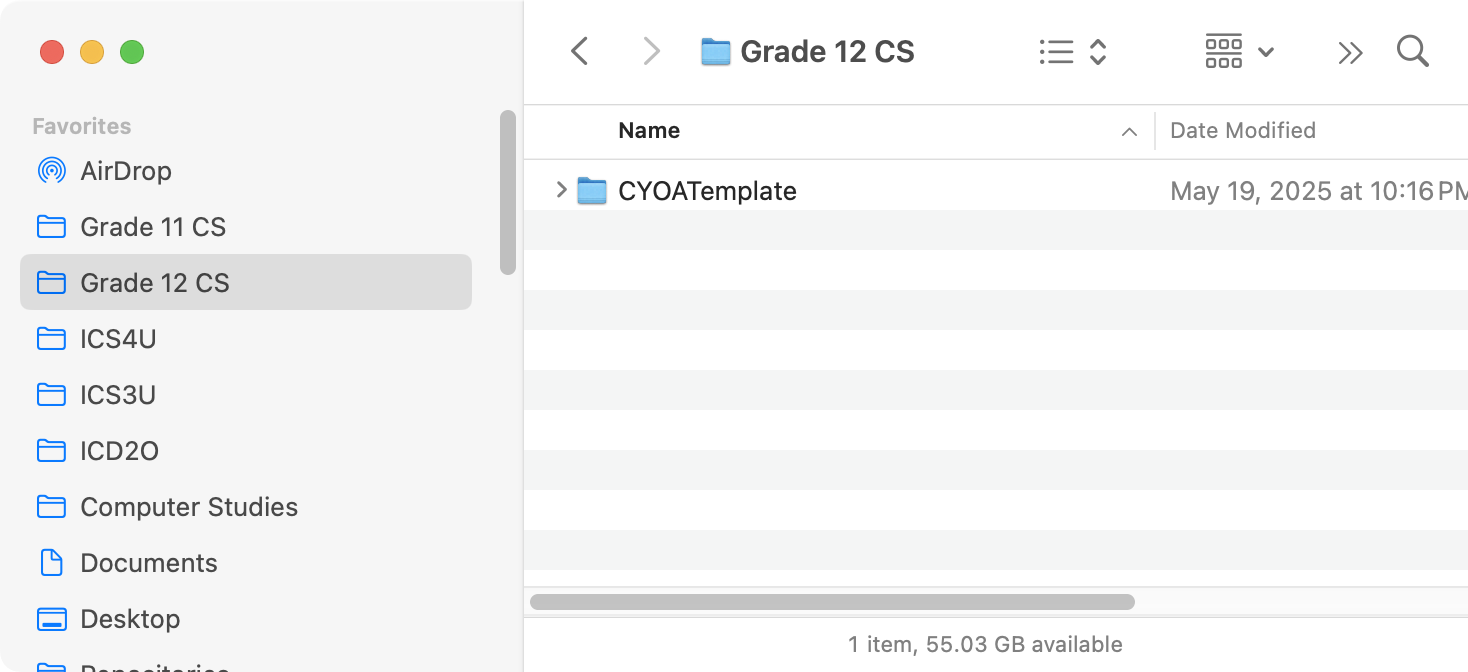
First, obtain the template for the Choose Your Own Adventure app, expand the Zip file, and move it to the Grade 12 Computer Science folder on their computer:
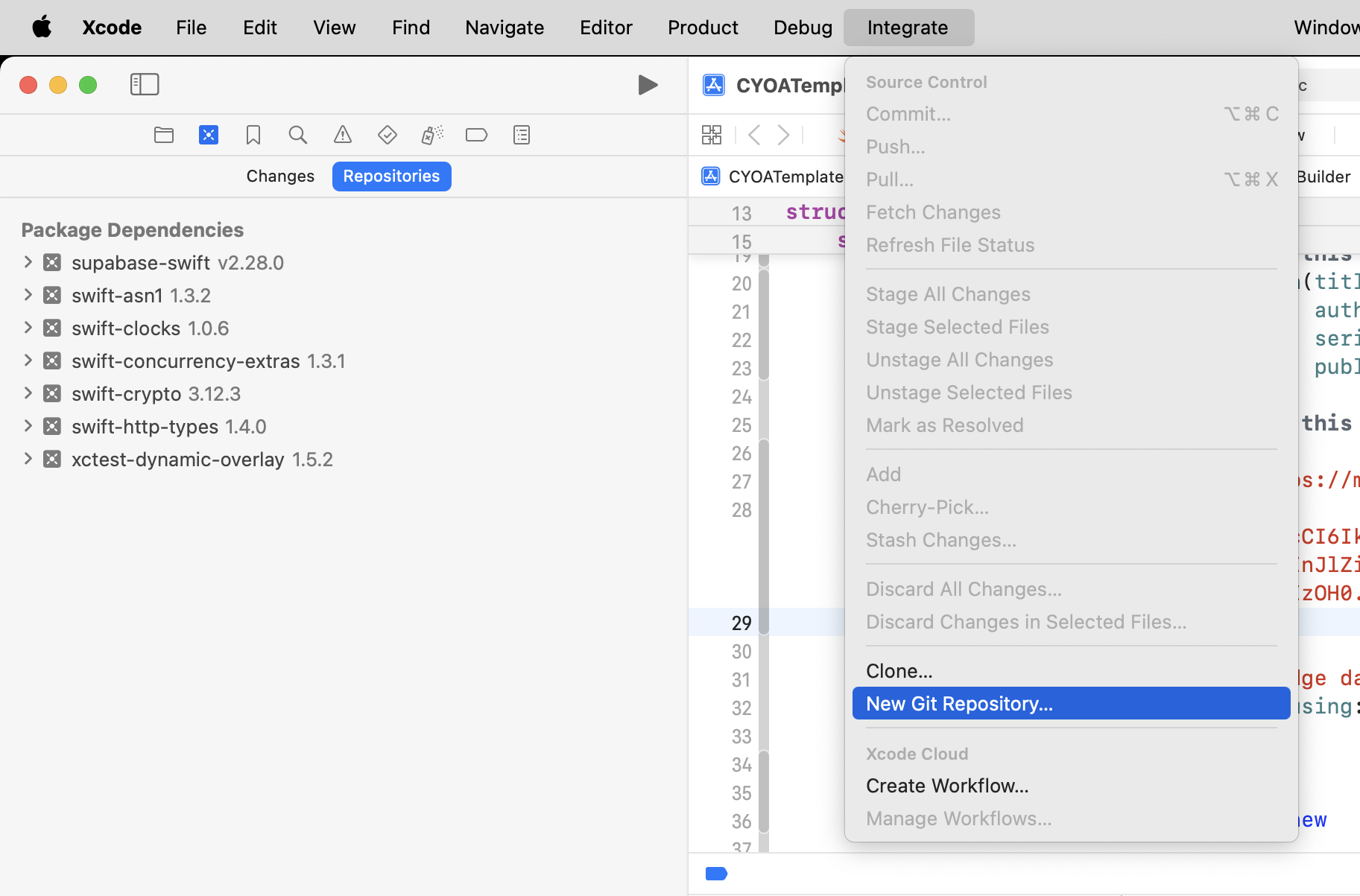
Next, create a local Git repository within the project:
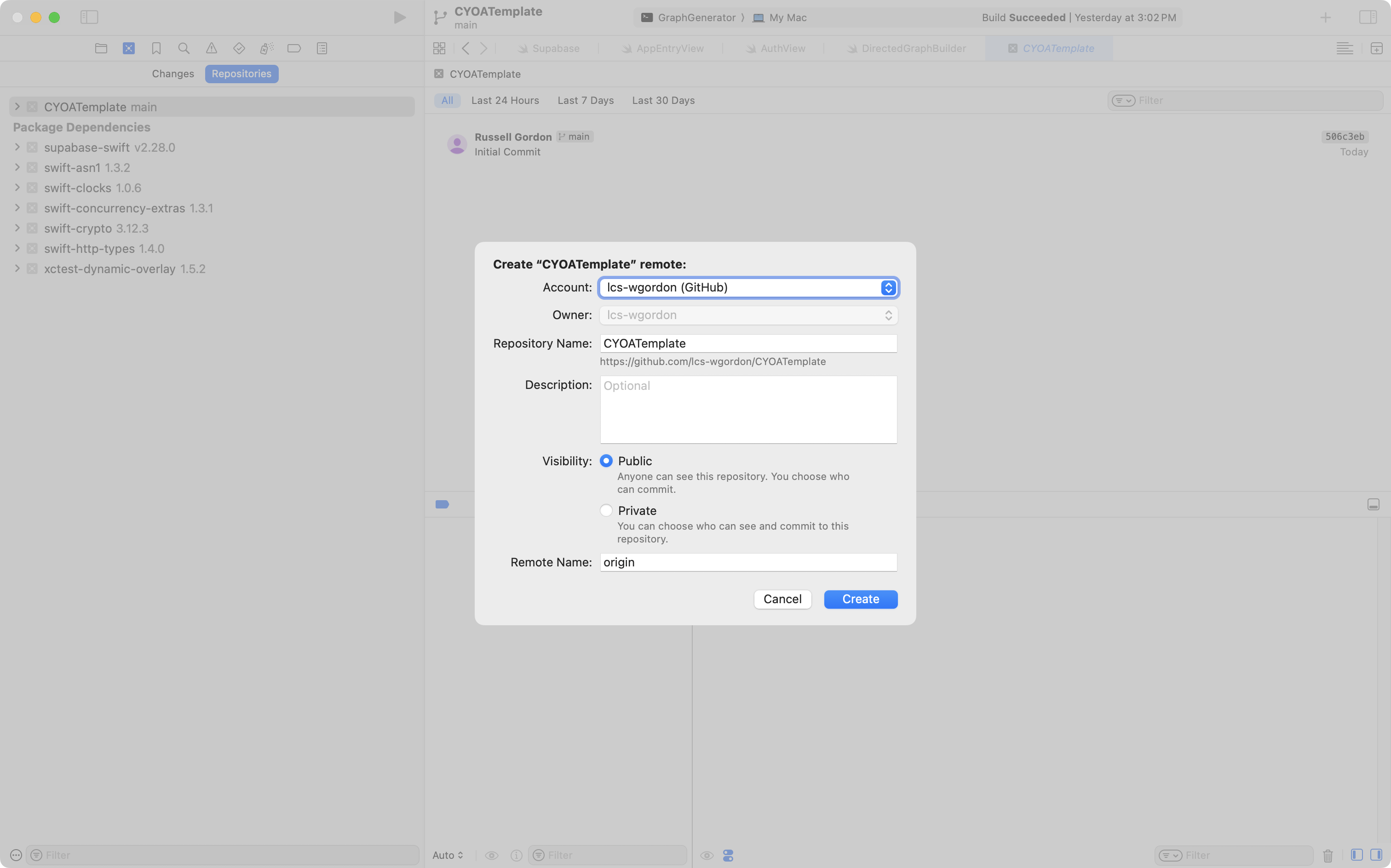
Then, create a public remote on GitHub:
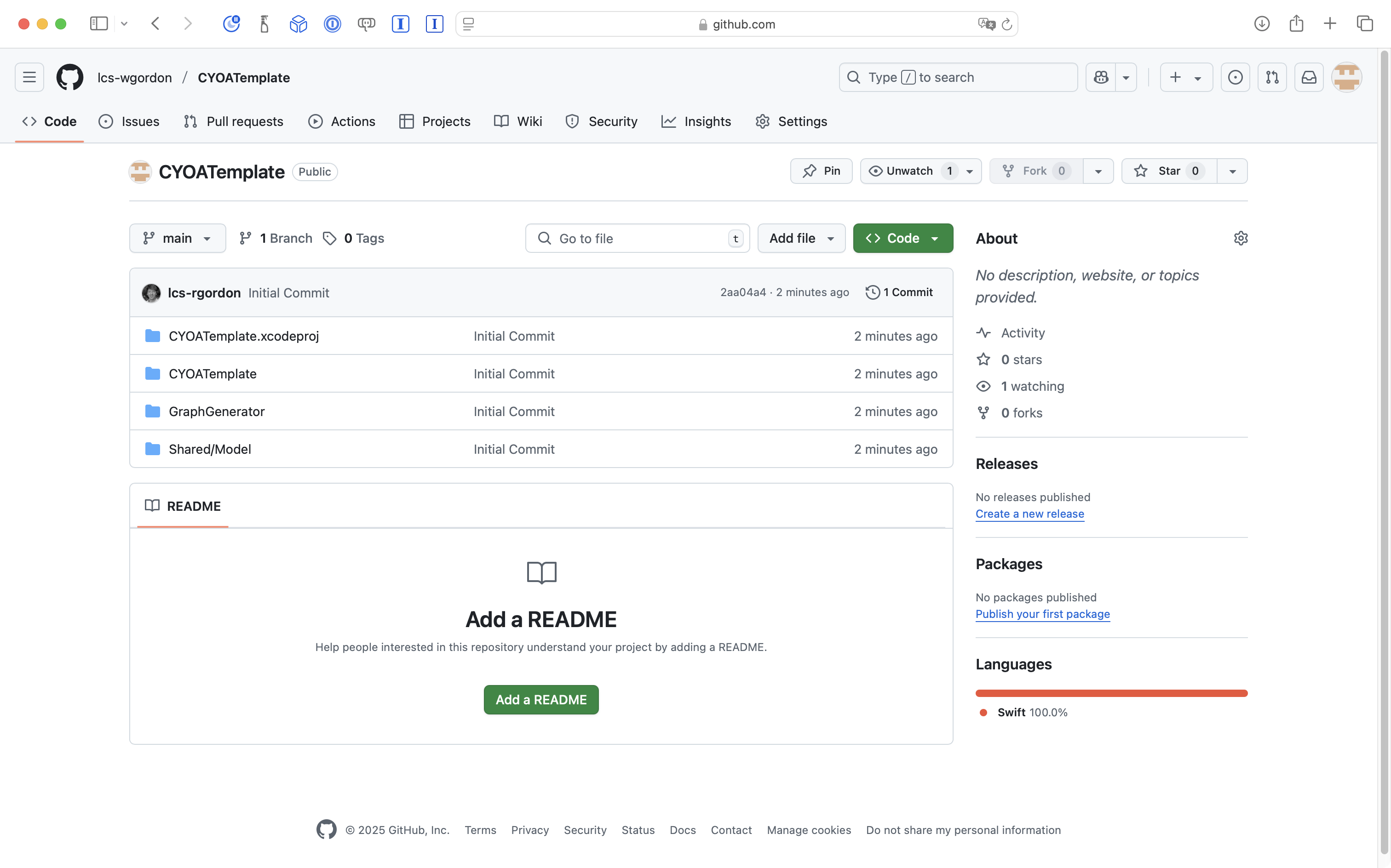
Verify that the project was created on GitHub:
Then view all branches:
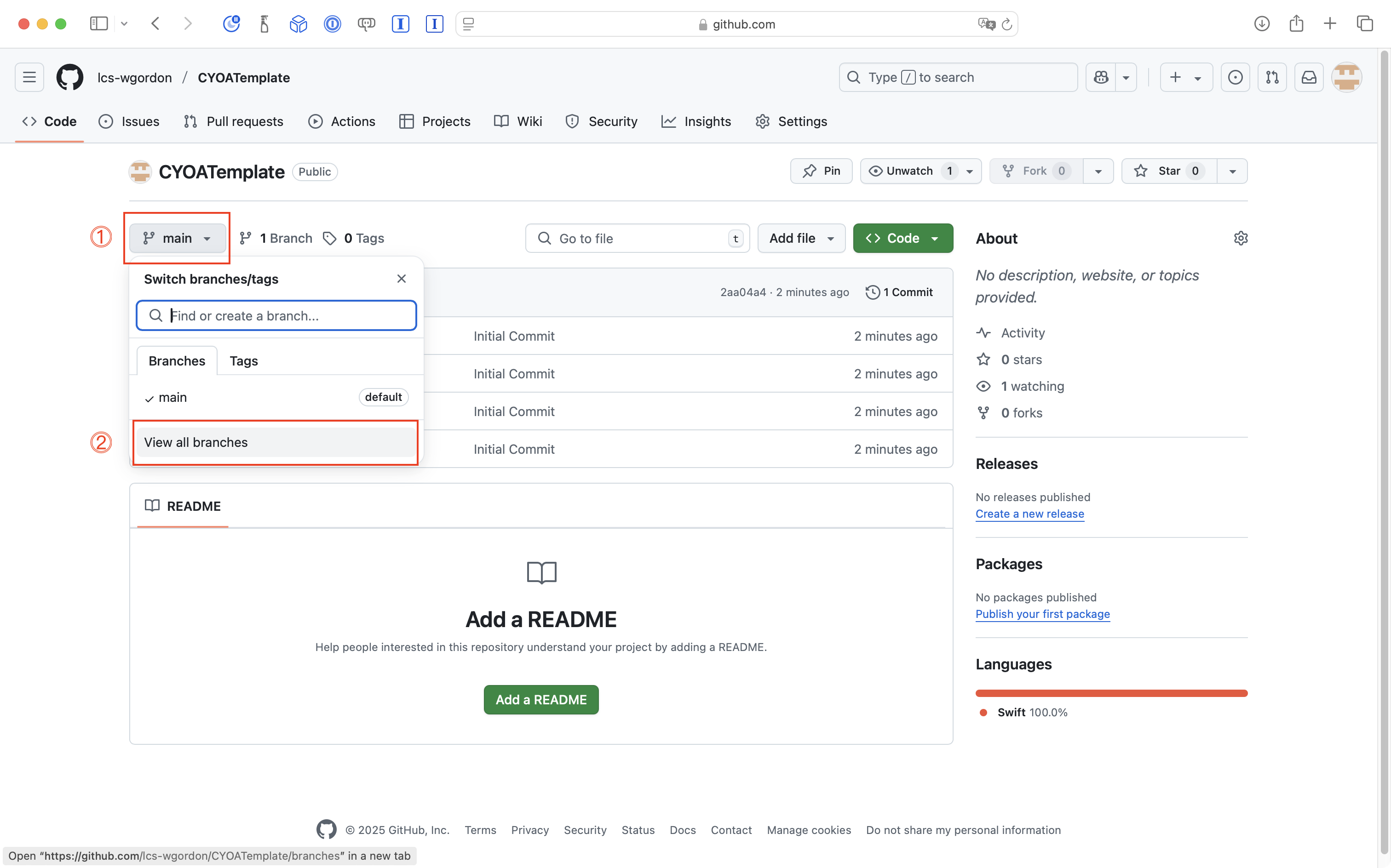
… and make a new branch:
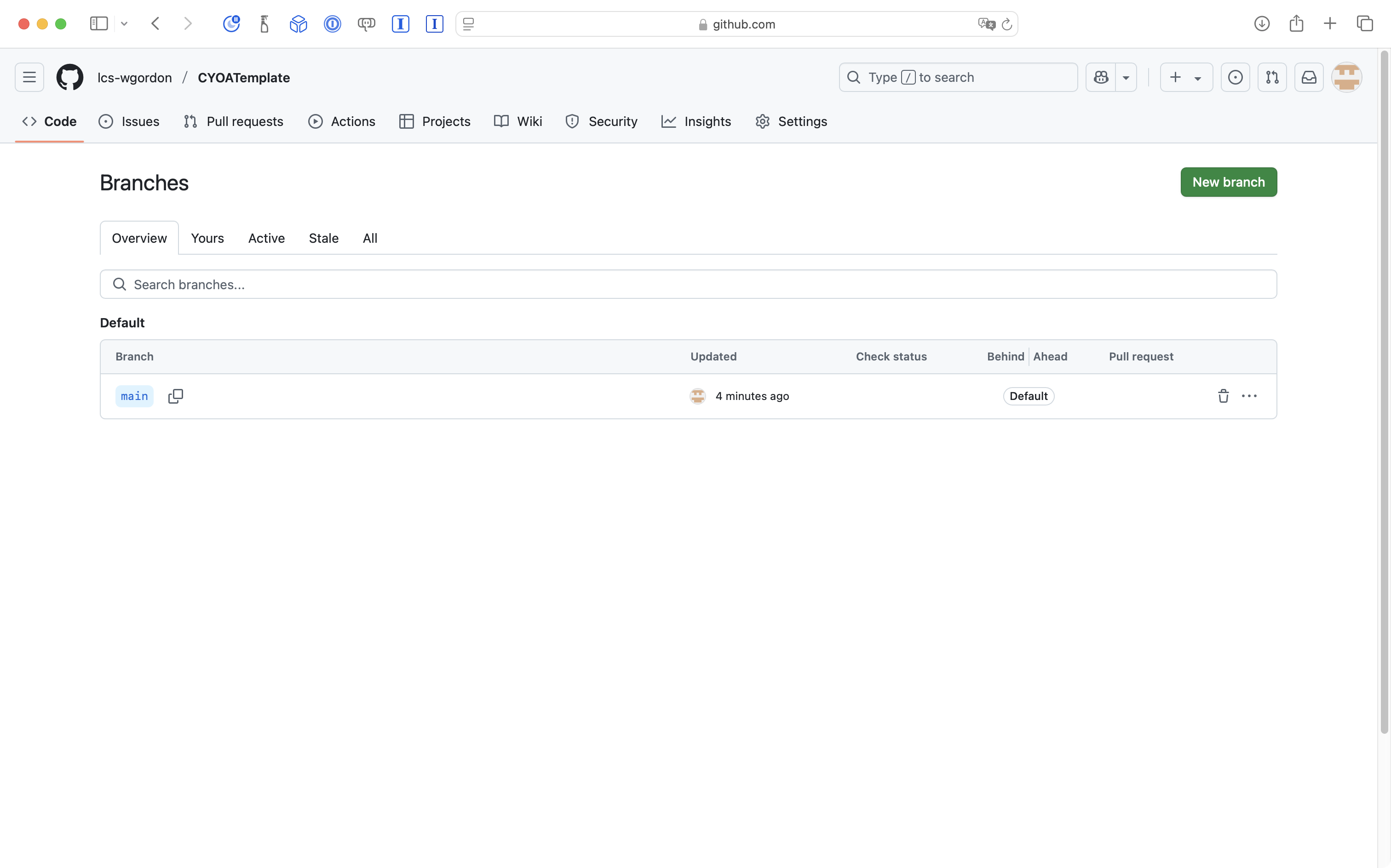
… named development:
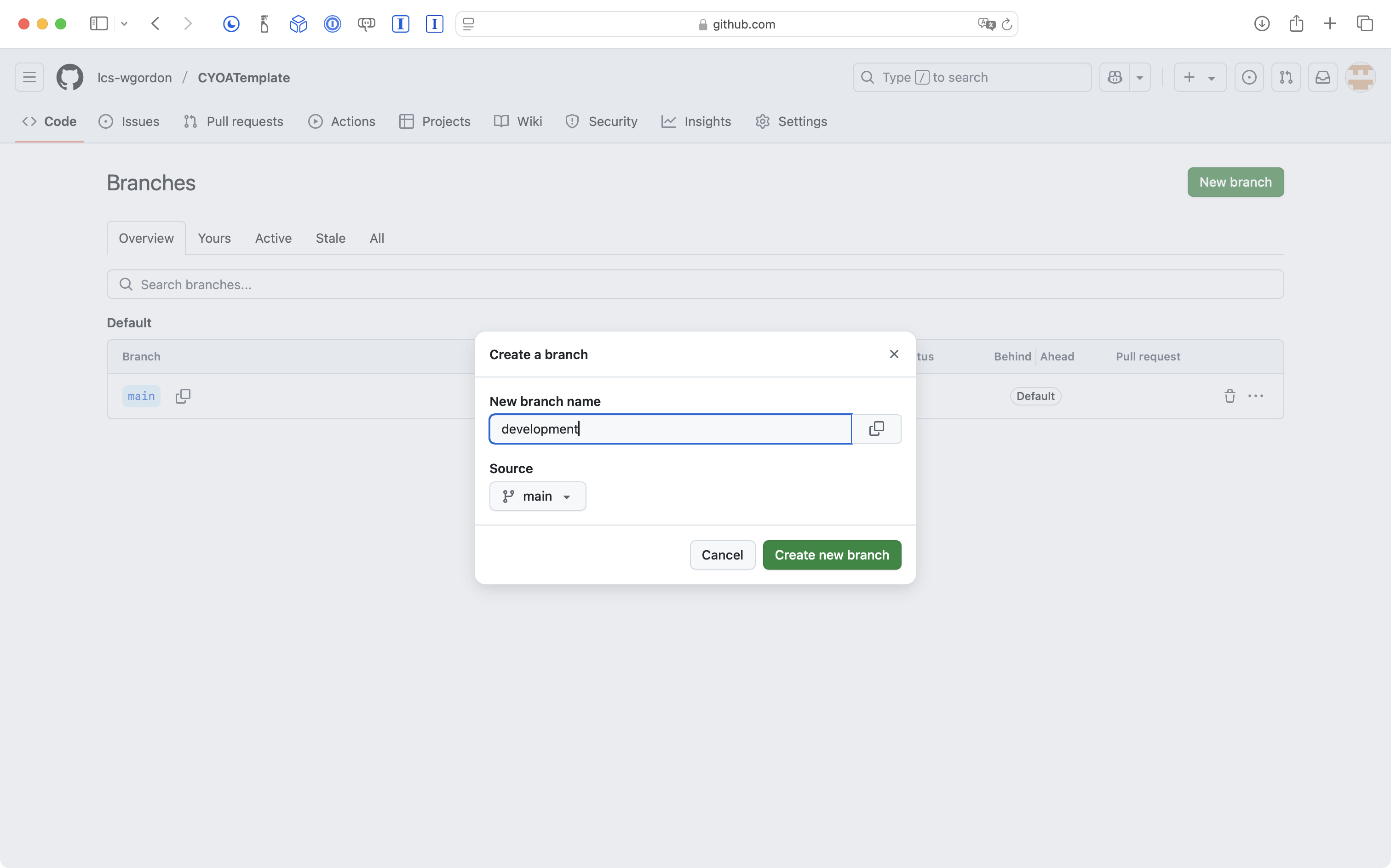
… it should look like this when finished:
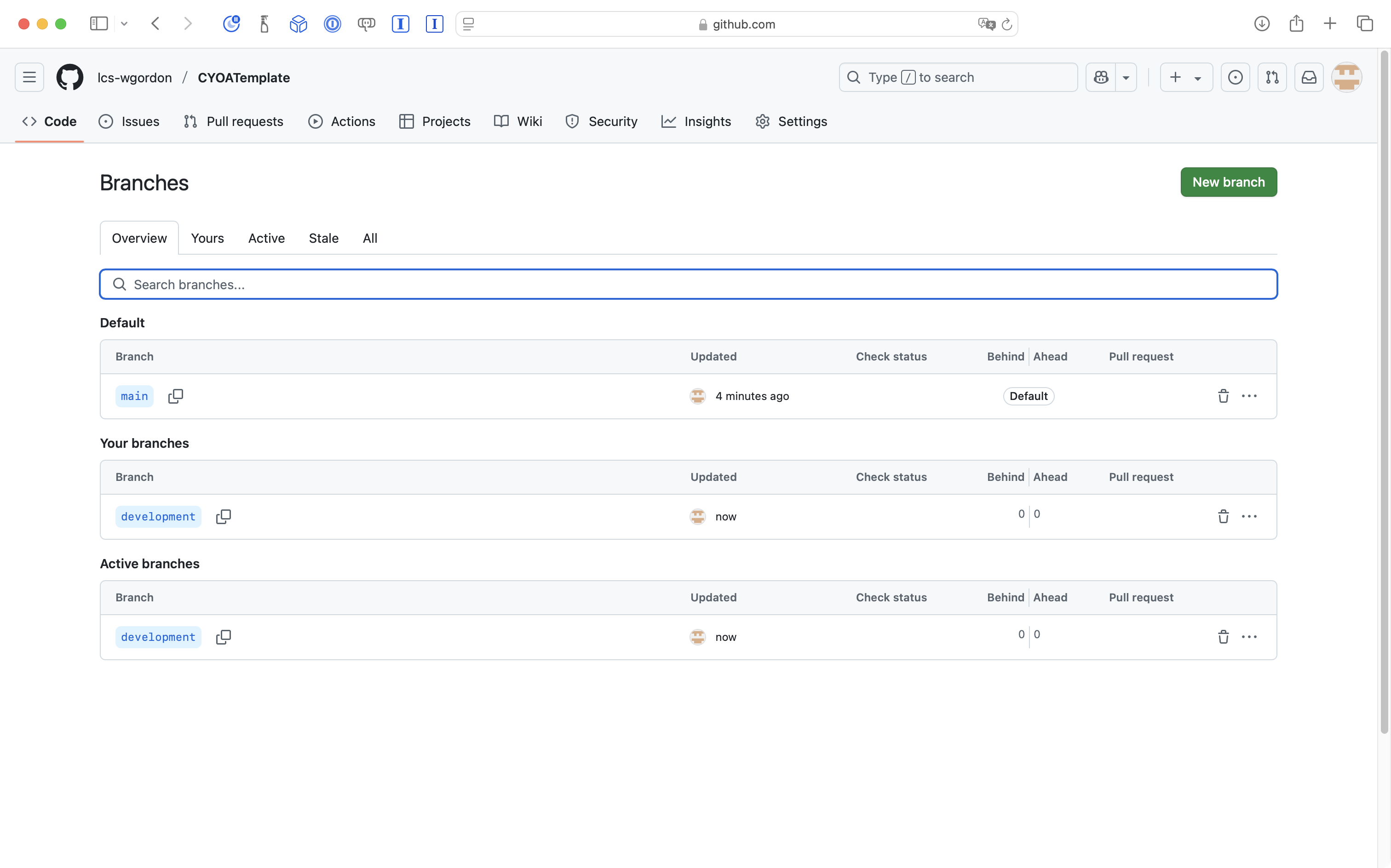
Now visit the Projects tab:
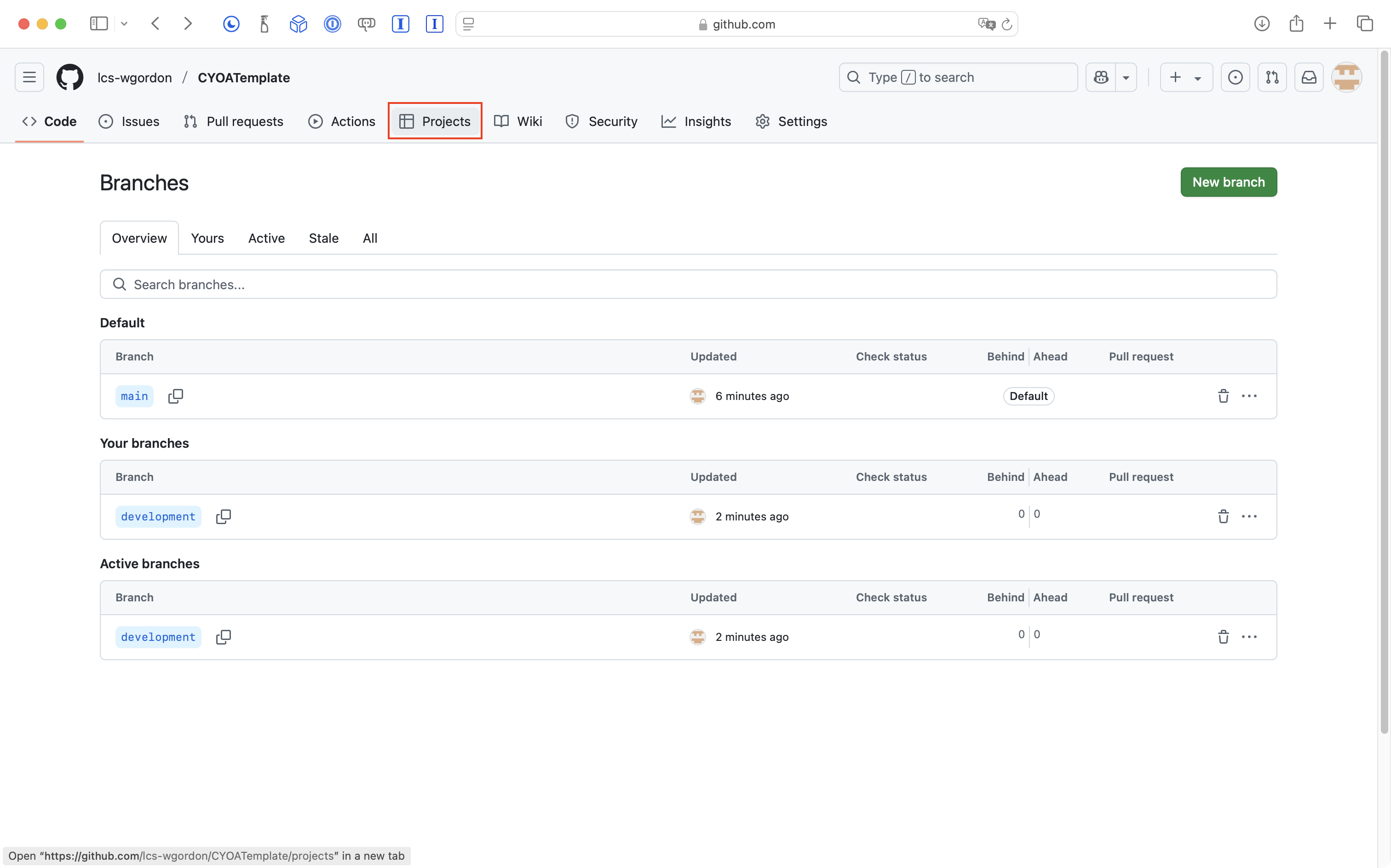
Create a new project:
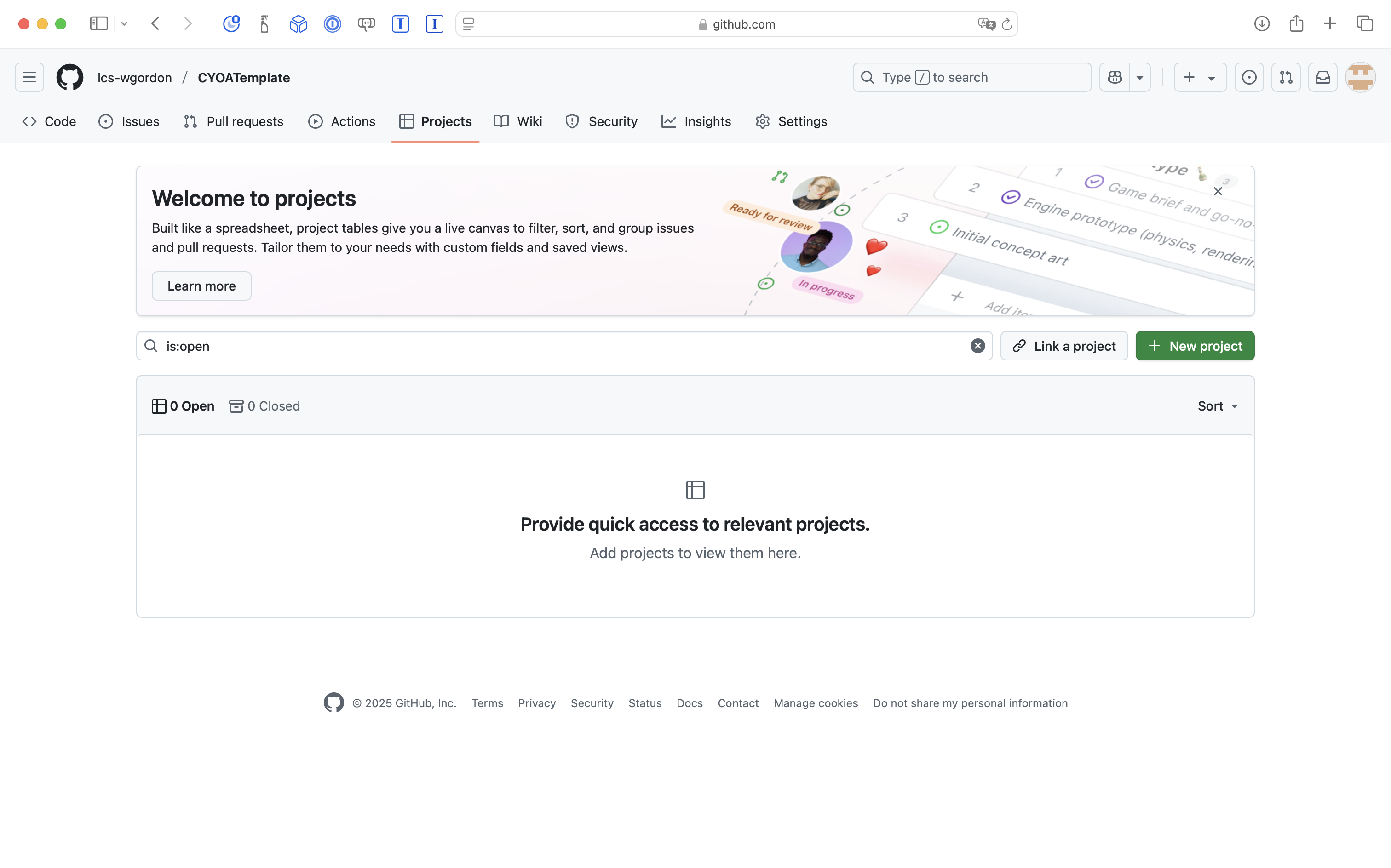
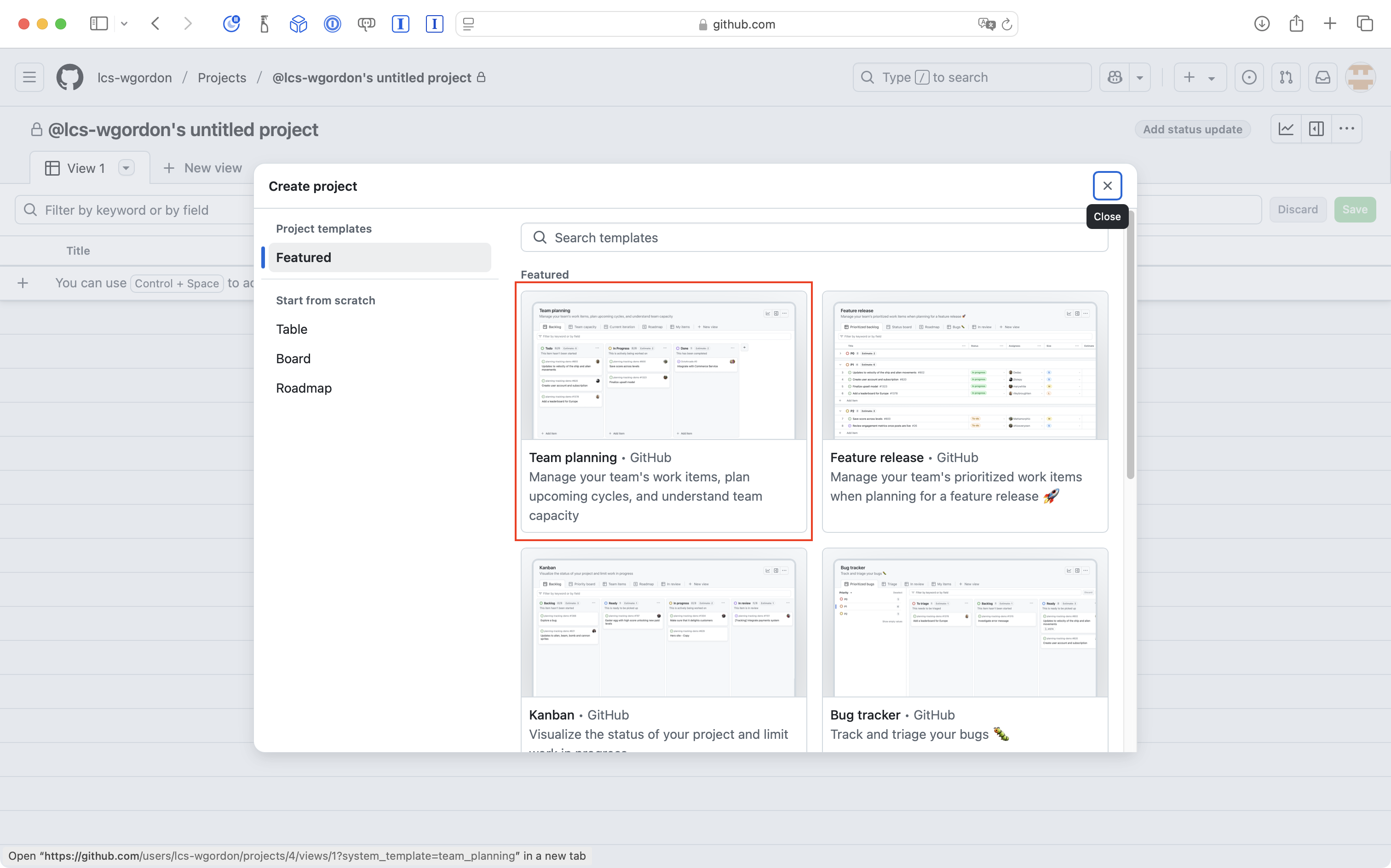
Choose the Team planning template:
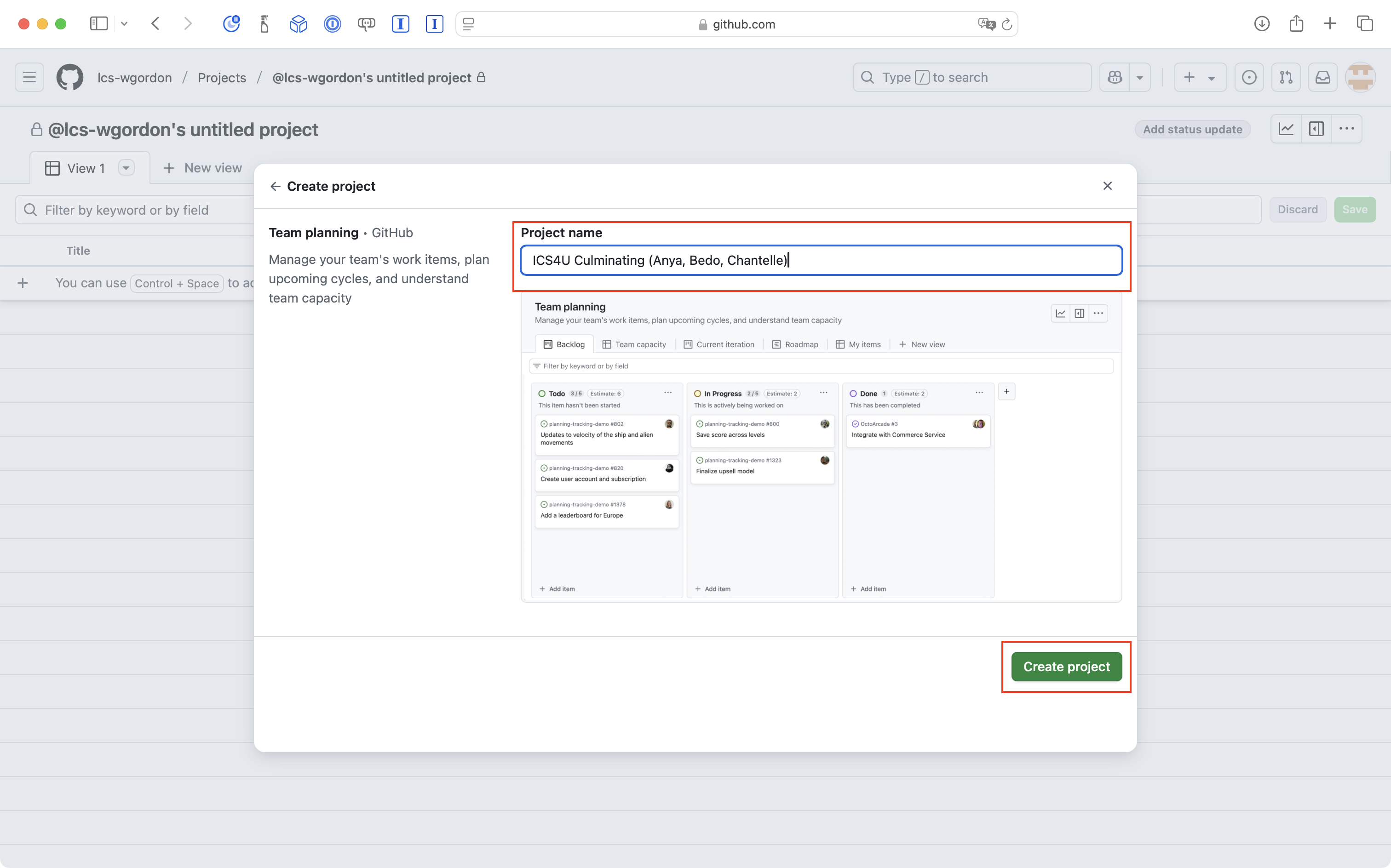
Name the project as shown (include the names of your group members please) and then create the project:
Now choose Settings for your project:
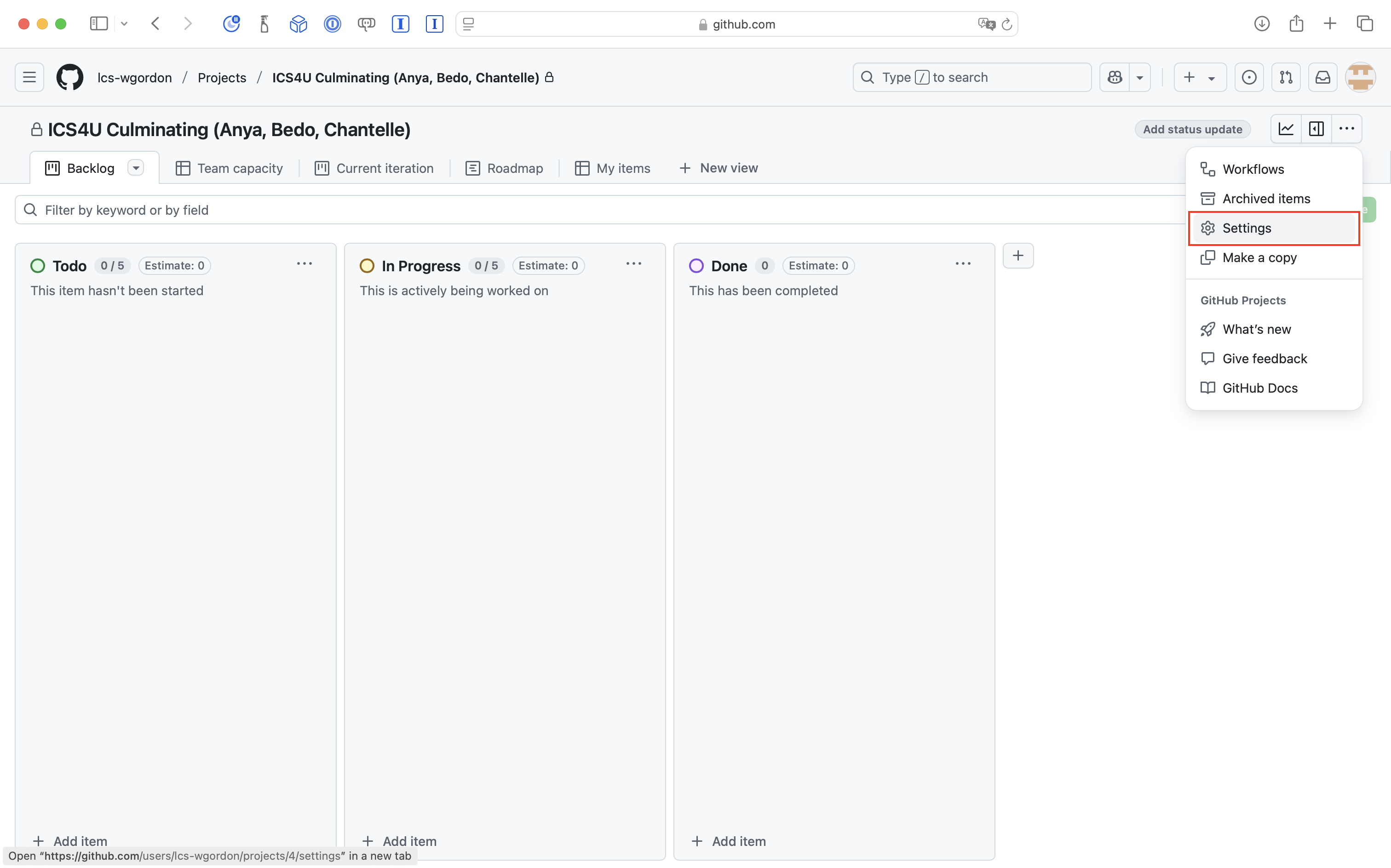
Choose Manage Access and invite the other members of your team with Write access to the project:
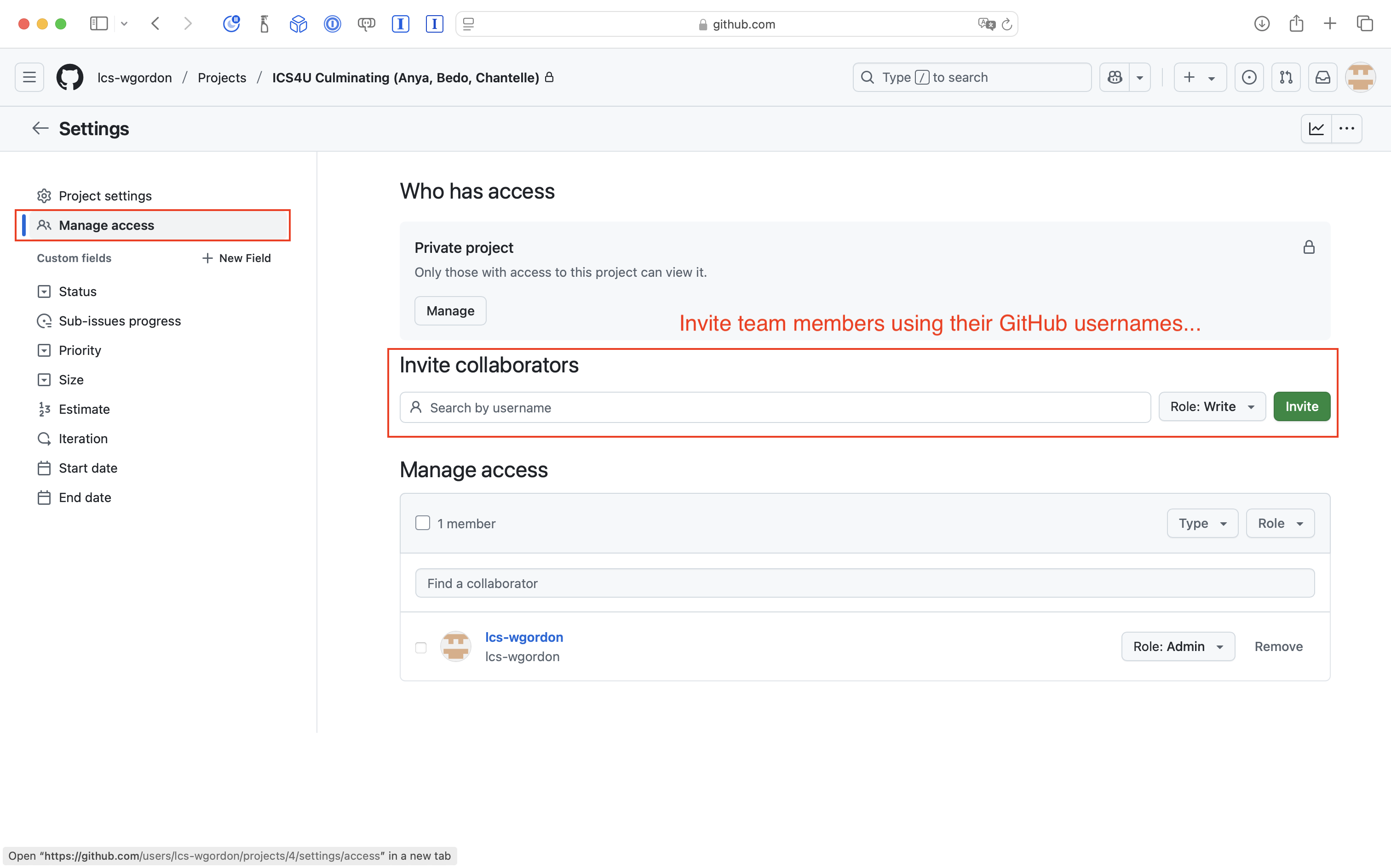
Now go back to the home page for the CYOATemplate project and select the Projects tab:
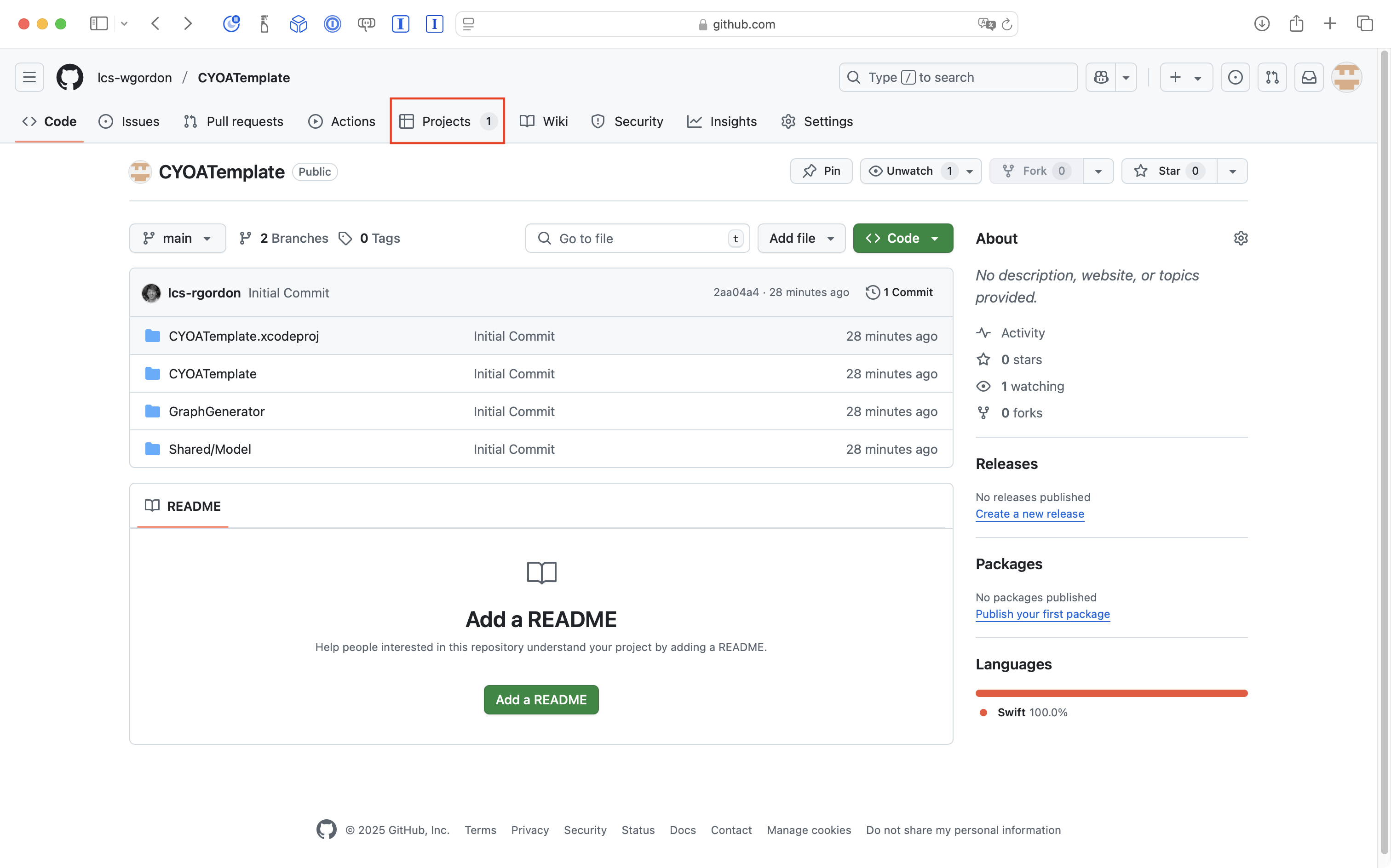
Then choose Link a project:
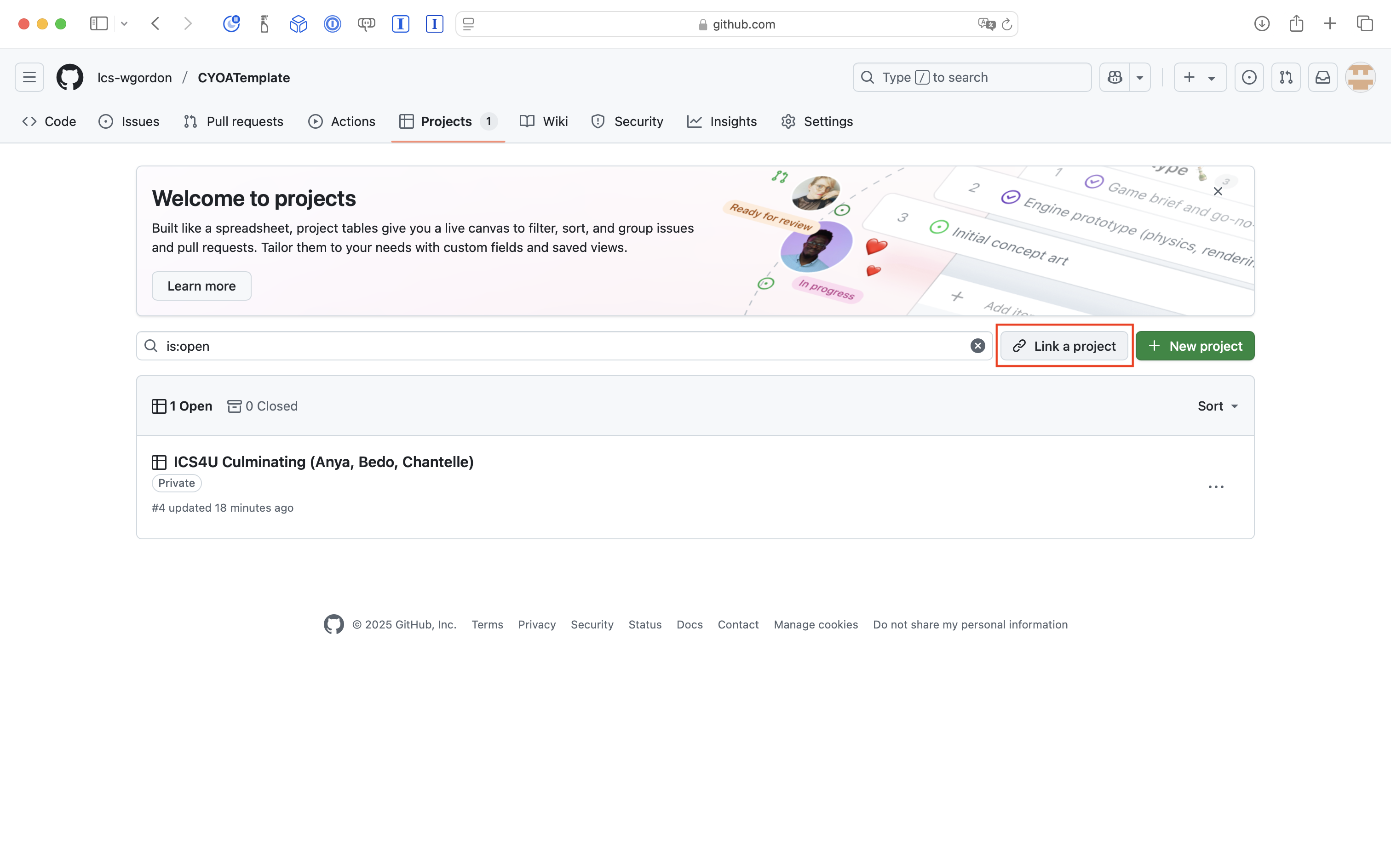
Then choose to link the CYOATemplate repository to your project:
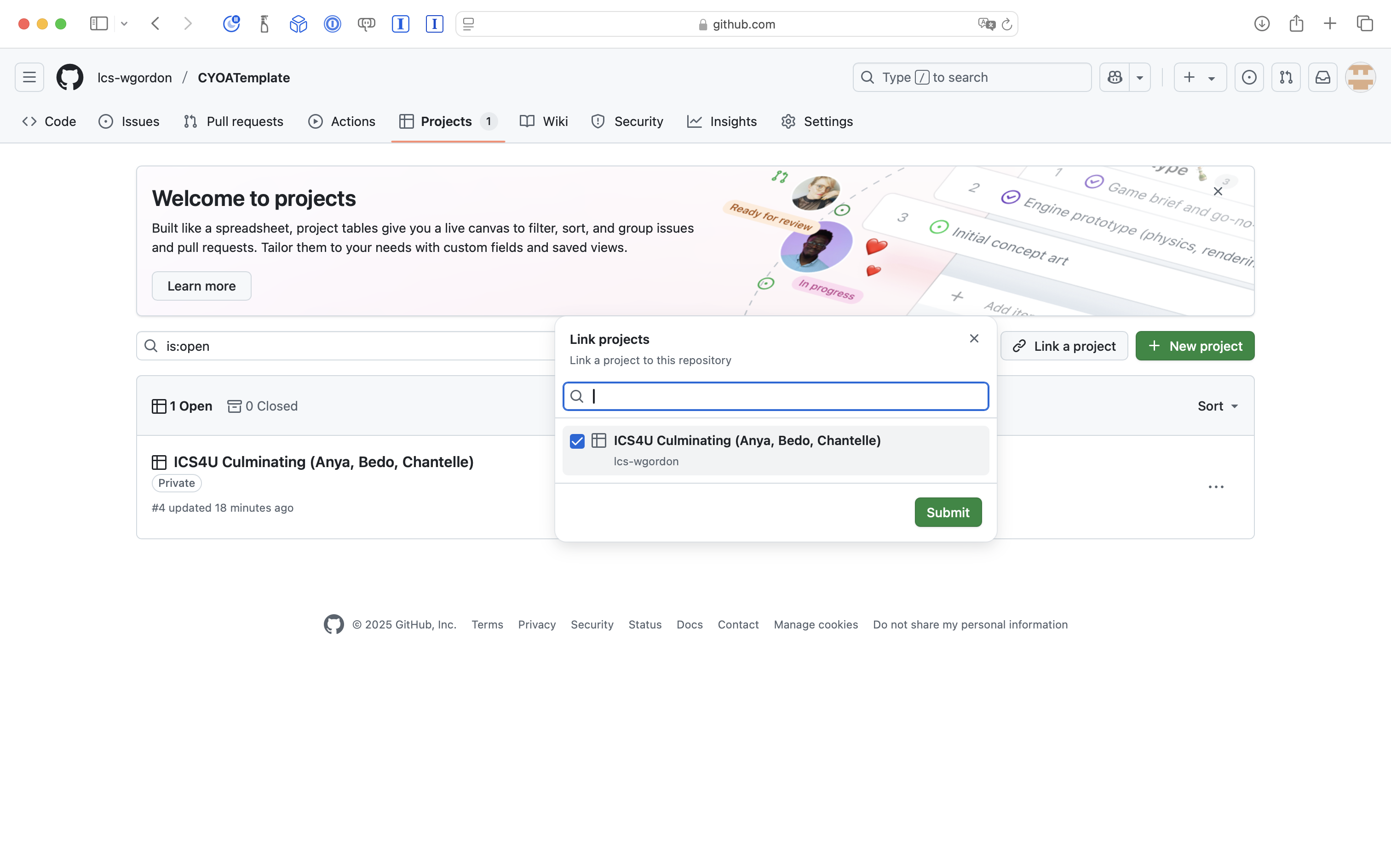
Finally, the other members of your group should create a fork of the new repository that is owned by the project manager.
Contributions to the source code must be made using the approach you learned earlier this year: Source Control Within a Team.
TIP
You can review a description of how this source code works here.
Database
This provided template connects to a database run out of a Supabase project created by Mr. Gordon.
Here is a look at the schema of this database:
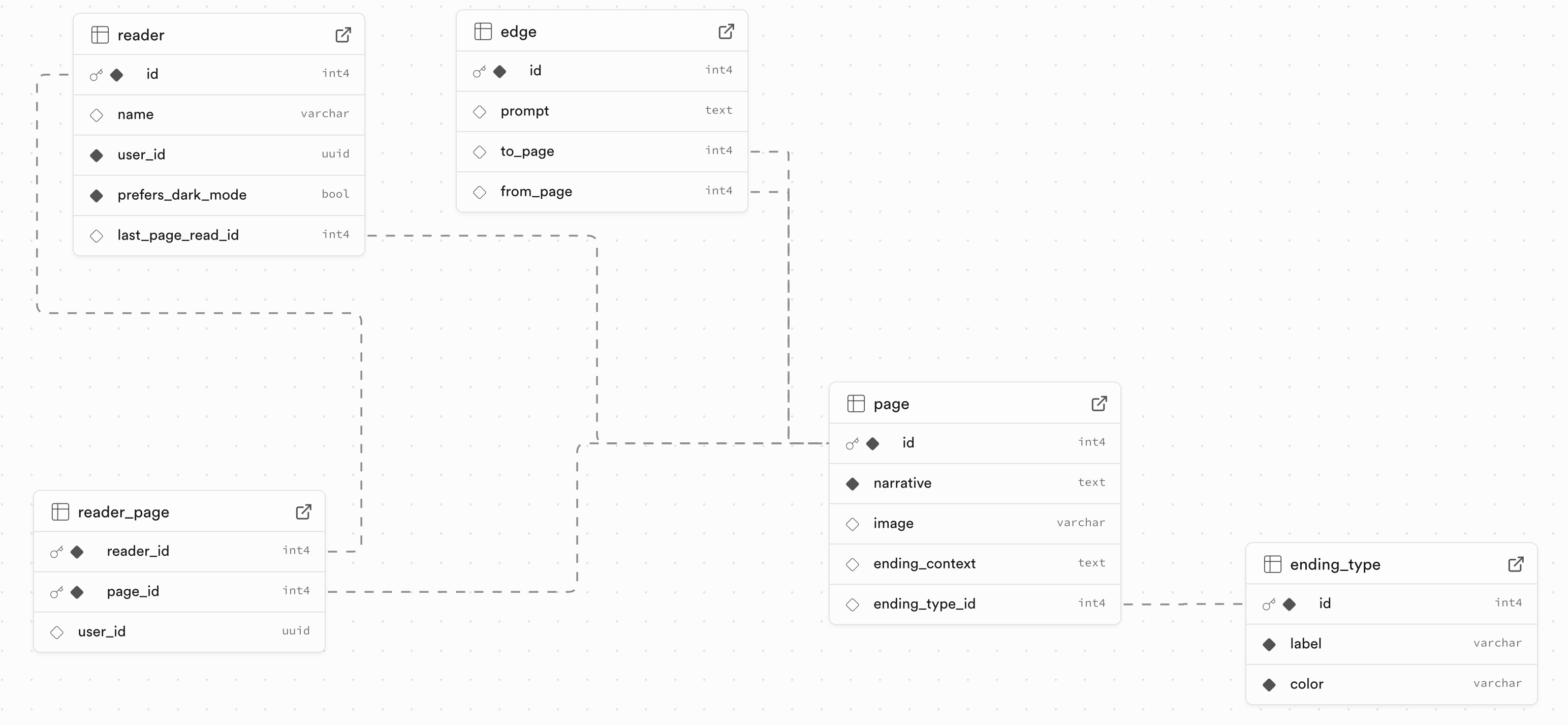
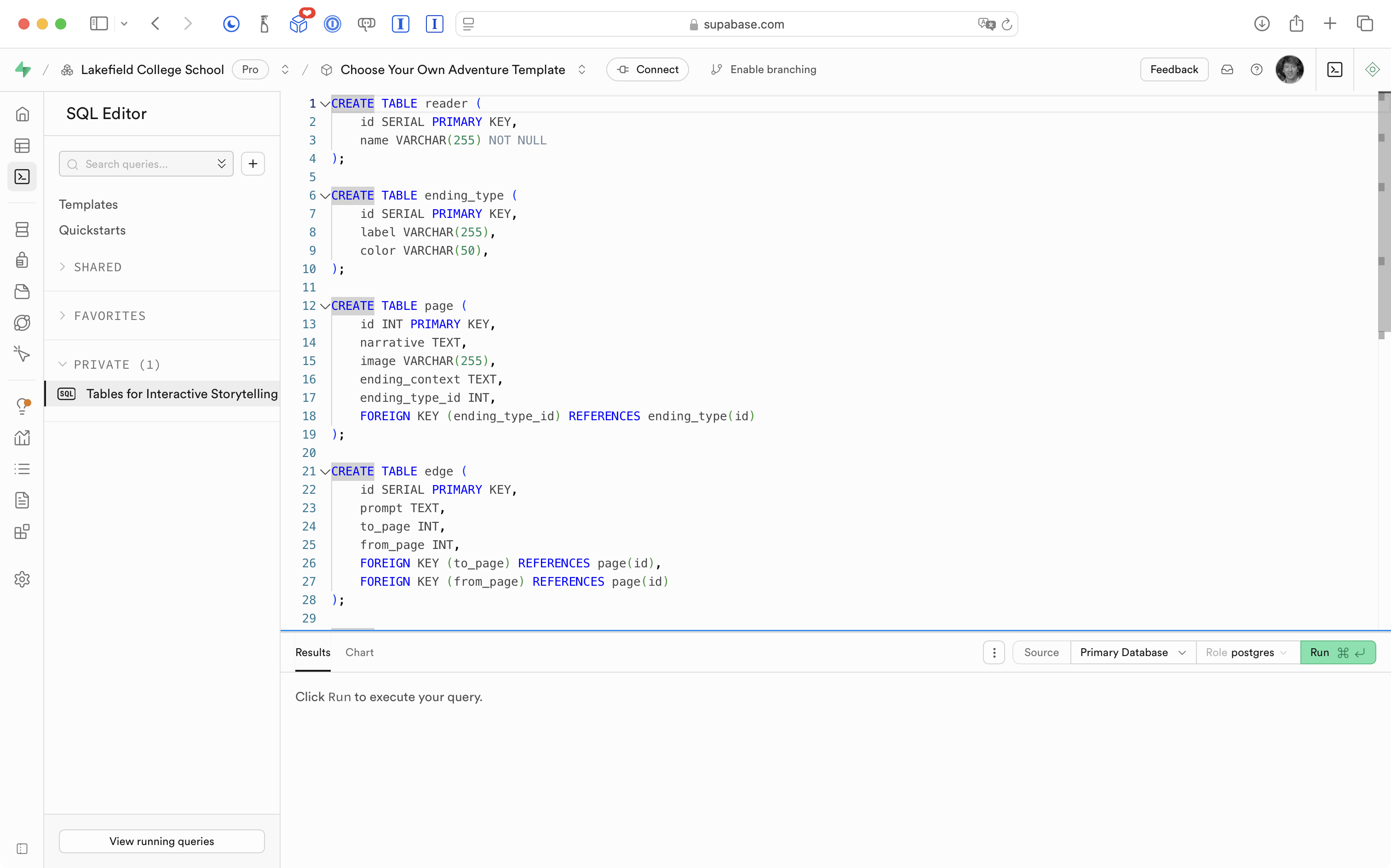
The database manager needs to create a new project at Supabase.
Then, they should use the provided starter script in the SQL Editor, and run that script, to create the same schema in their own Supabase project:
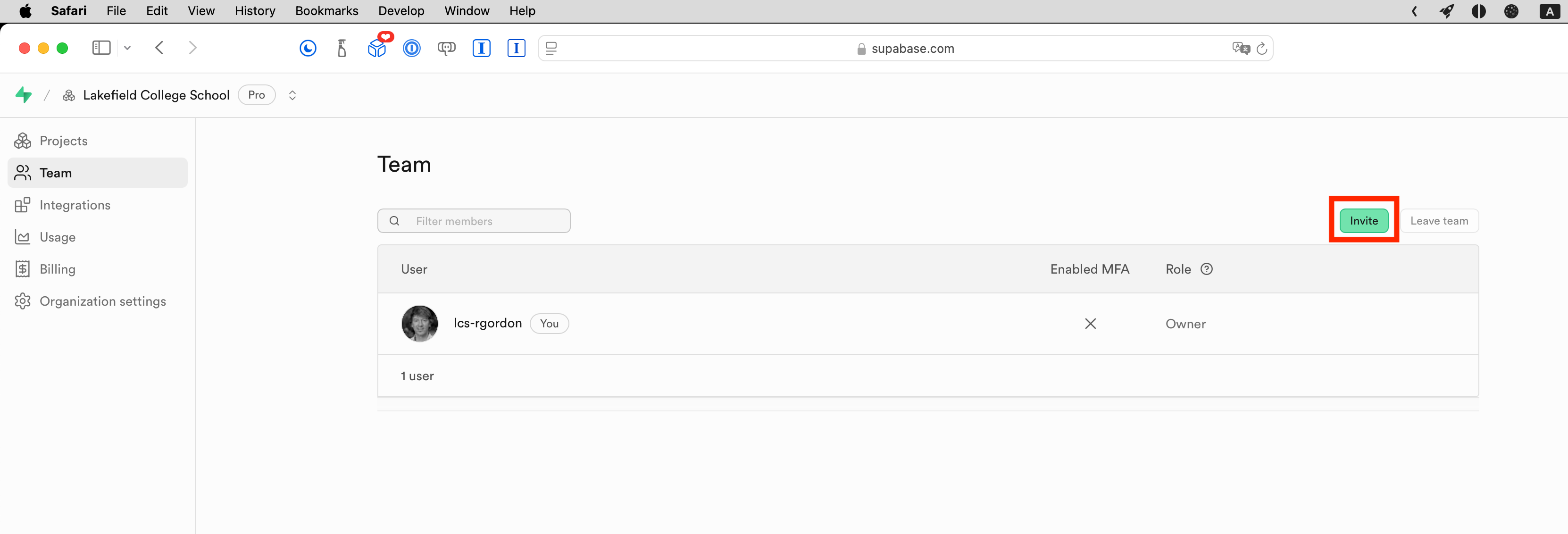
Next, the database manager should invite Mr. Gordon as an administrator within their Supabase organization:
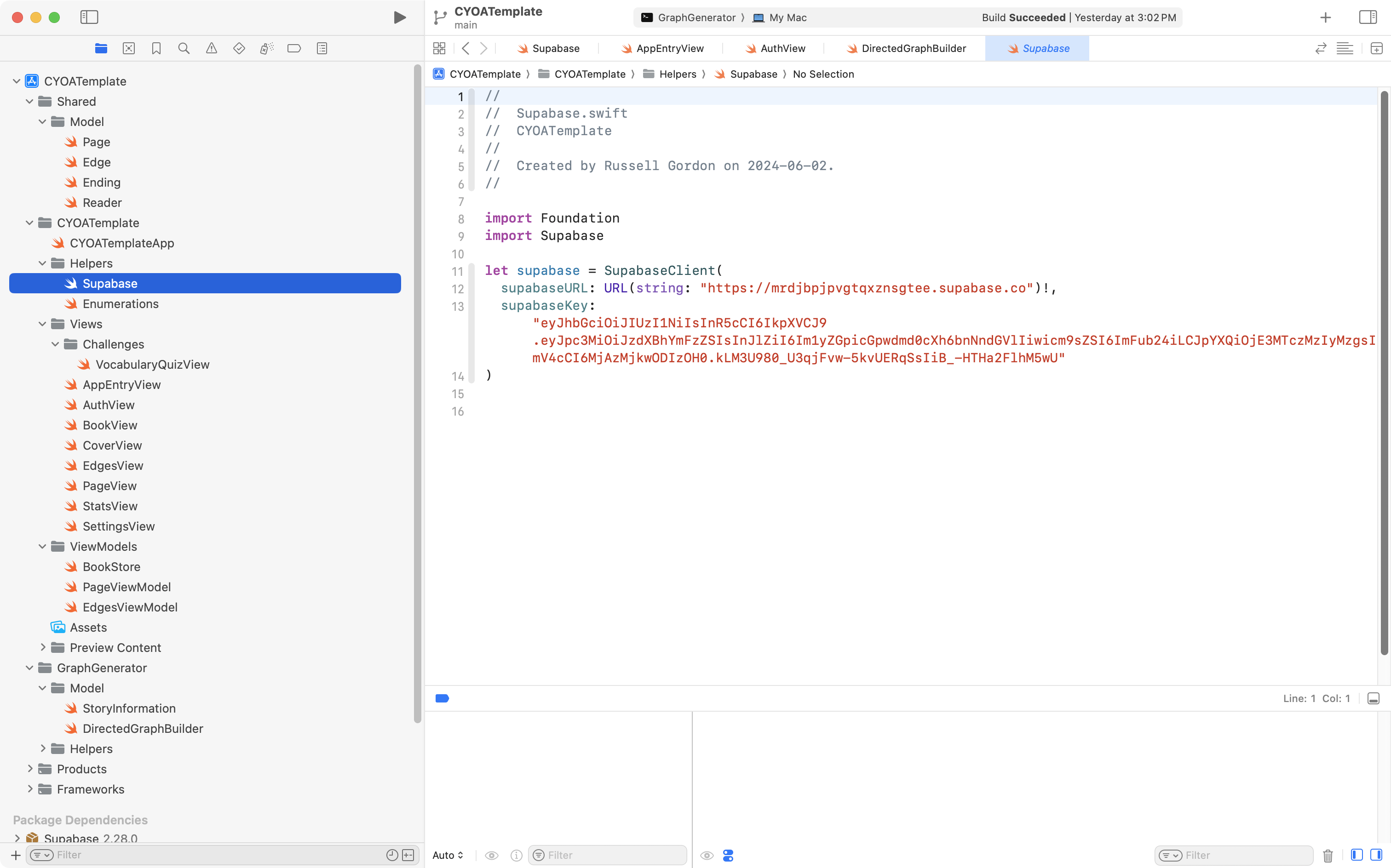
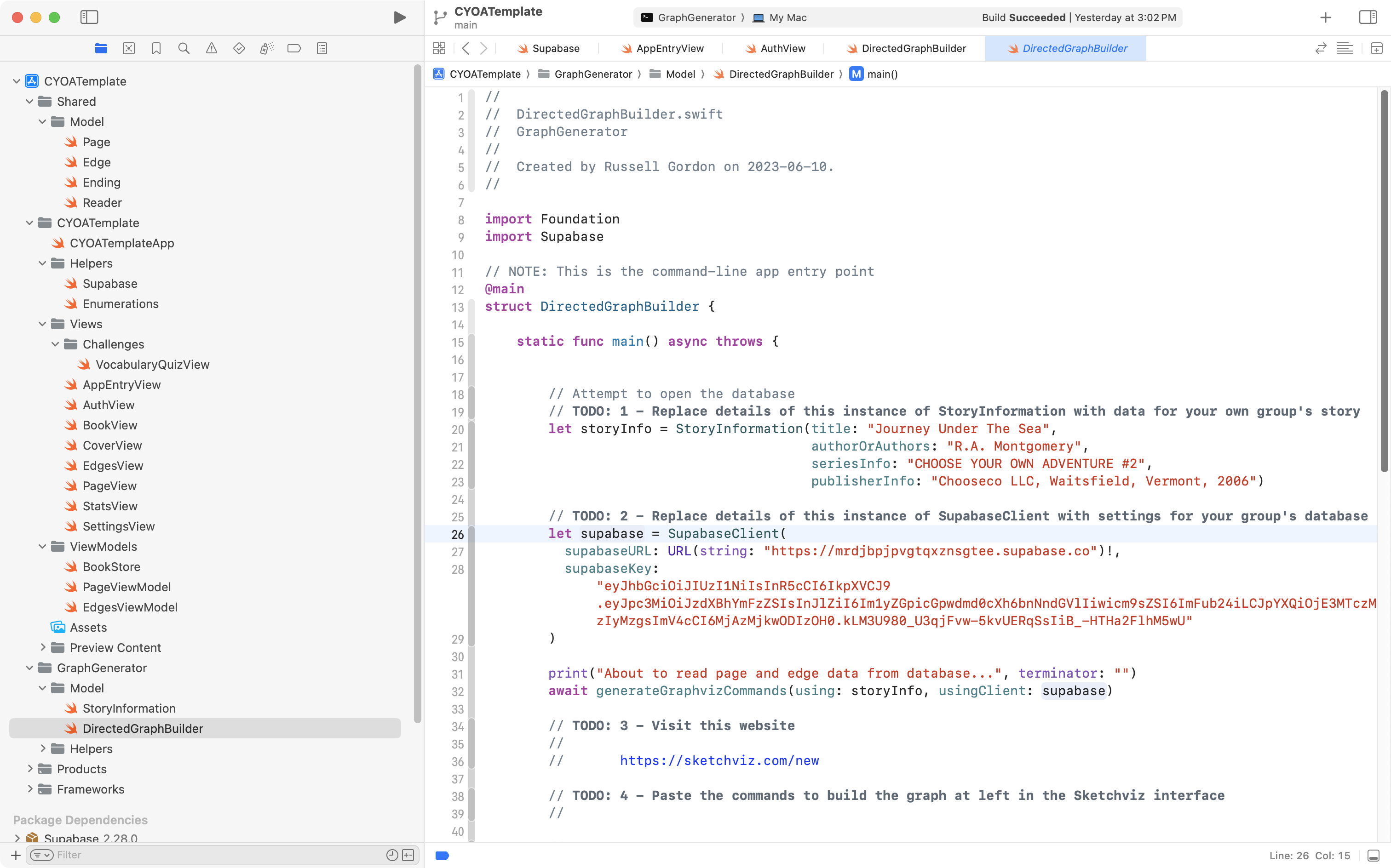
The database manager needs to obtain the project URL and API key for their own group’s project, and replace the values provided in the CYOA template.
They should navigate to this section of their project to obtain those values:
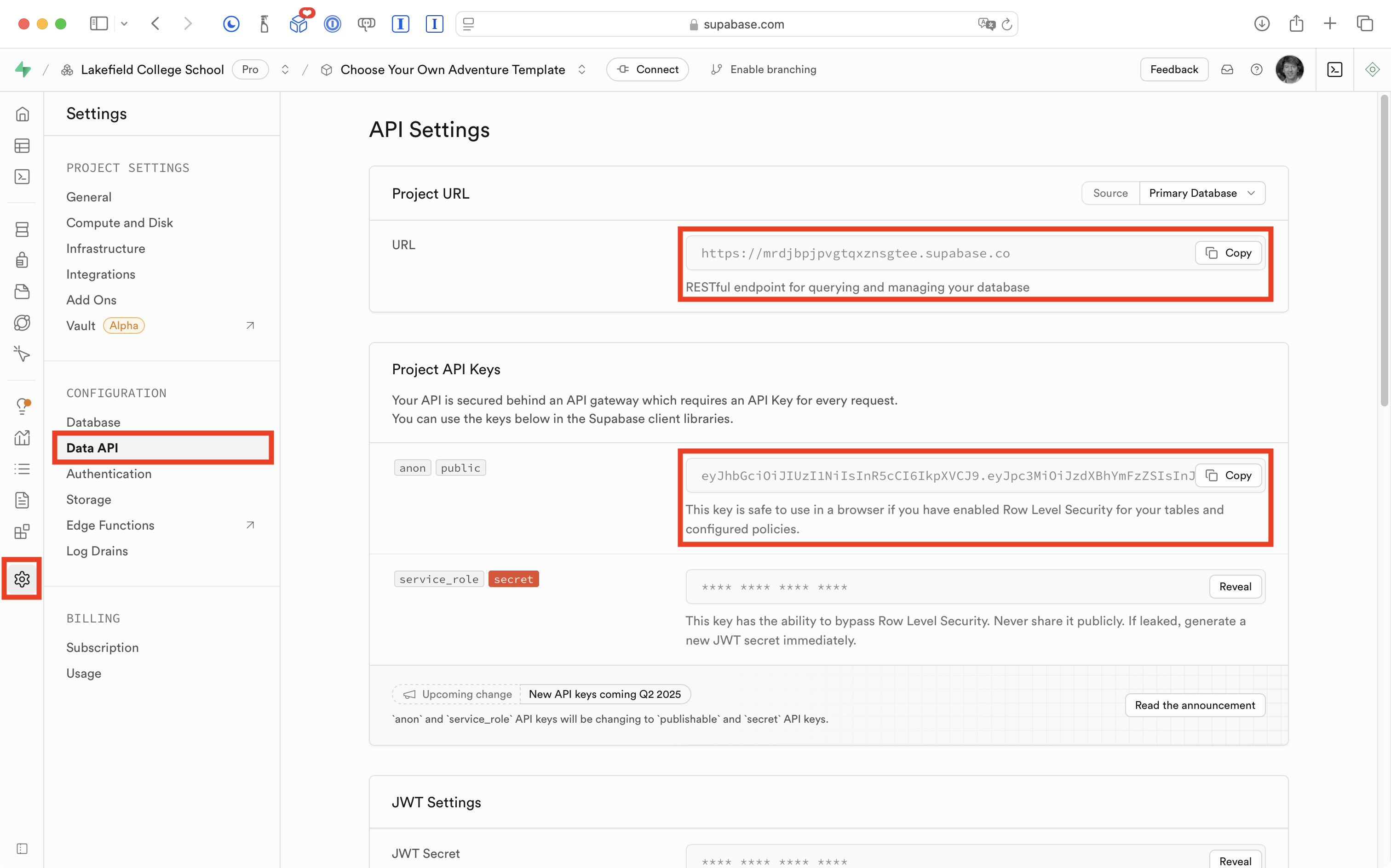
… then replace those values within the template code with the values from their project, first here:
… as well as here:
TIP
You are encouraged to review the documentation regarding the database and its schema.
Authentication
Regrettably, Mr. Gordon missed one small step in the database setup procedure.
Please watch this 1 minute video showing how to enable anonymous logins to your group’s database – thanks to Dale Liu for allowing me to record this on his computer to explain what needs to be done: