NOTE
Mr. Gordon generated this tutorial using ChatGPT (here are the prompts given and responses received).
He then reviewed and edited the results for clarity and accuracy, and added screenshots.
This page is intended as a reference (please bookmark for future use).
In this tutorial, you’ll learn how to enhance a simple SwiftUI app by adding a settings sheet. The settings sheet will let the user toggle whether the globe icon is shown on the main screen. We’ll also persist the user’s choice using the @AppStorage property wrapper, so the setting is remembered even if the app is closed.
Prerequisites
This tutorial assumes you have basic familiarity with SwiftUI and Xcode. If you’ve created a simple SwiftUI app before, you’re ready to follow along!
Step 1: Starting Point
Here is the code we’ll start with:
import SwiftUI

struct ContentView: View {
    var body: some View {
        VStack {
            Image(systemName: "globe")
                .imageScale(.large)
                .foregroundStyle(.tint)
            Text("Hello, world!")
        }
        .padding()
    }
}

#Preview {
    ContentView()
}
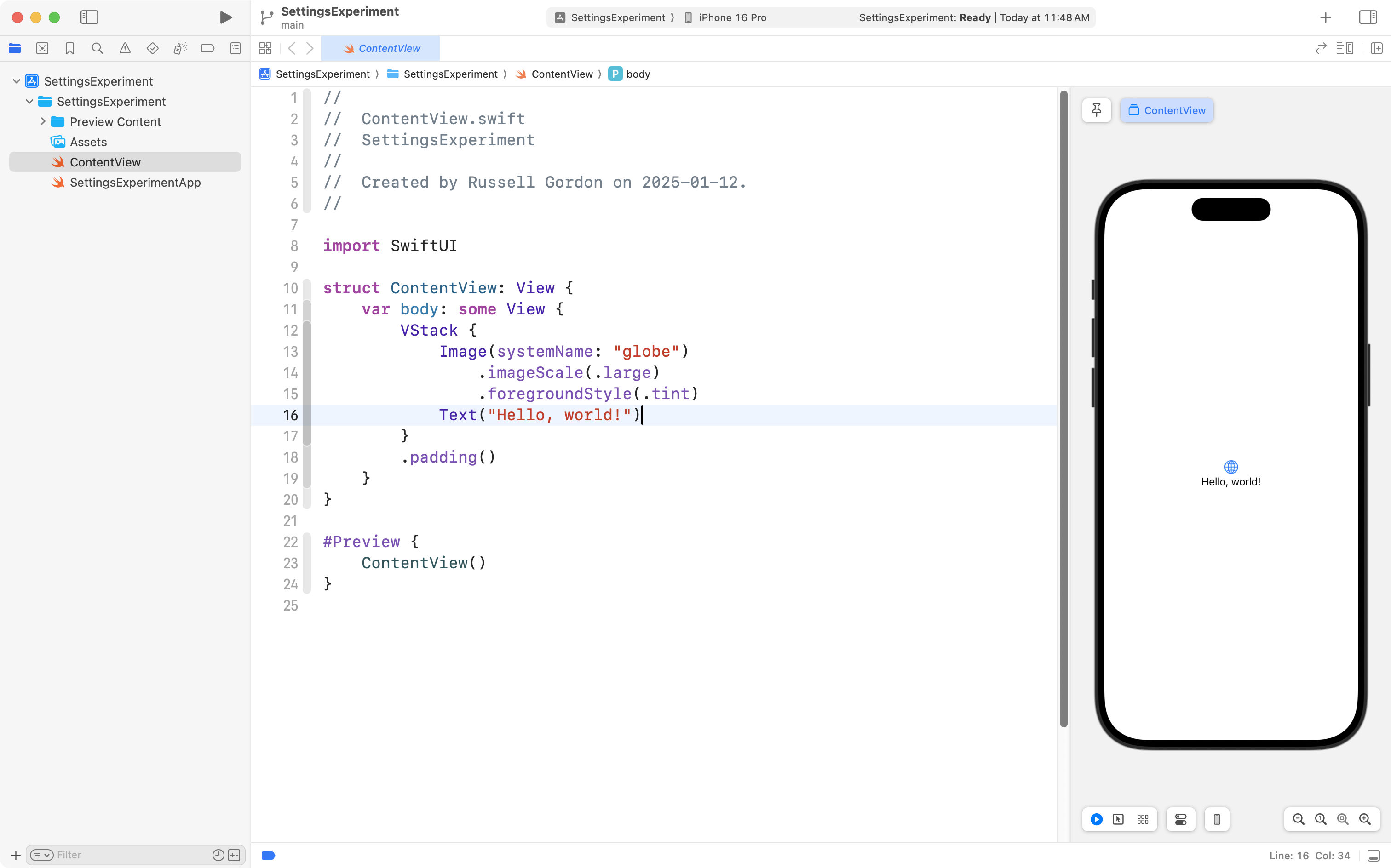
This app displays a globe icon and some text:
Next, we’ll add a settings sheet.
Step 2: Add a Gear Icon and Sheet
We want to show a settings sheet when the user taps a gear icon in the top-right corner of the screen.
- Wrap the
ContentViewin aNavigationStack. This adds a navigation bar to the app. - Add a gear icon as a button in the top-right corner of the navigation bar.
- Use the
.sheetmodifier to show the settings sheet when the button is tapped.
Here’s the updated code:
import SwiftUI

struct ContentView: View {
    @State private var isShowingSettings = false

    var body: some View {
        NavigationStack {
            VStack {
                Image(systemName: "globe")
                    .imageScale(.large)
                    .foregroundStyle(.tint)
                Text("Hello, world!")
            }
            .padding()
            .navigationTitle("Main Screen")
            .toolbar {
                ToolbarItem(placement: .navigationBarTrailing) {
                    Button(action: {
                        isShowingSettings = true
                    }) {
                        Image(systemName: "gearshape")
                    }
                }
            }
            .sheet(isPresented: $isShowingSettings) {
                SettingsView()
            }
        }
    }
}

struct SettingsView: View {
    var body: some View {
        Text("Settings")
            .font(.title)
            .padding()
    }
}

#Preview {
    ContentView()
}
Run the app:
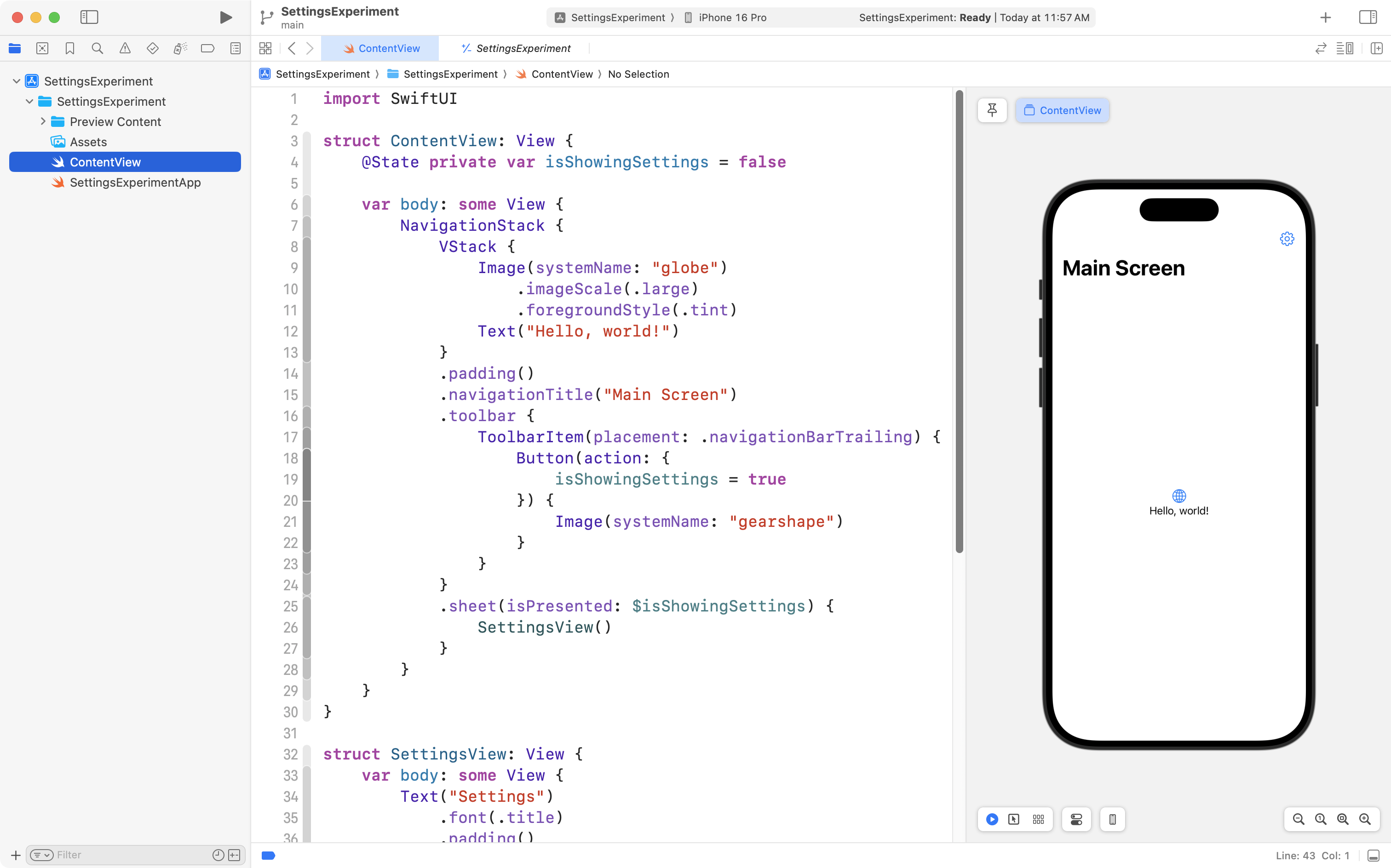
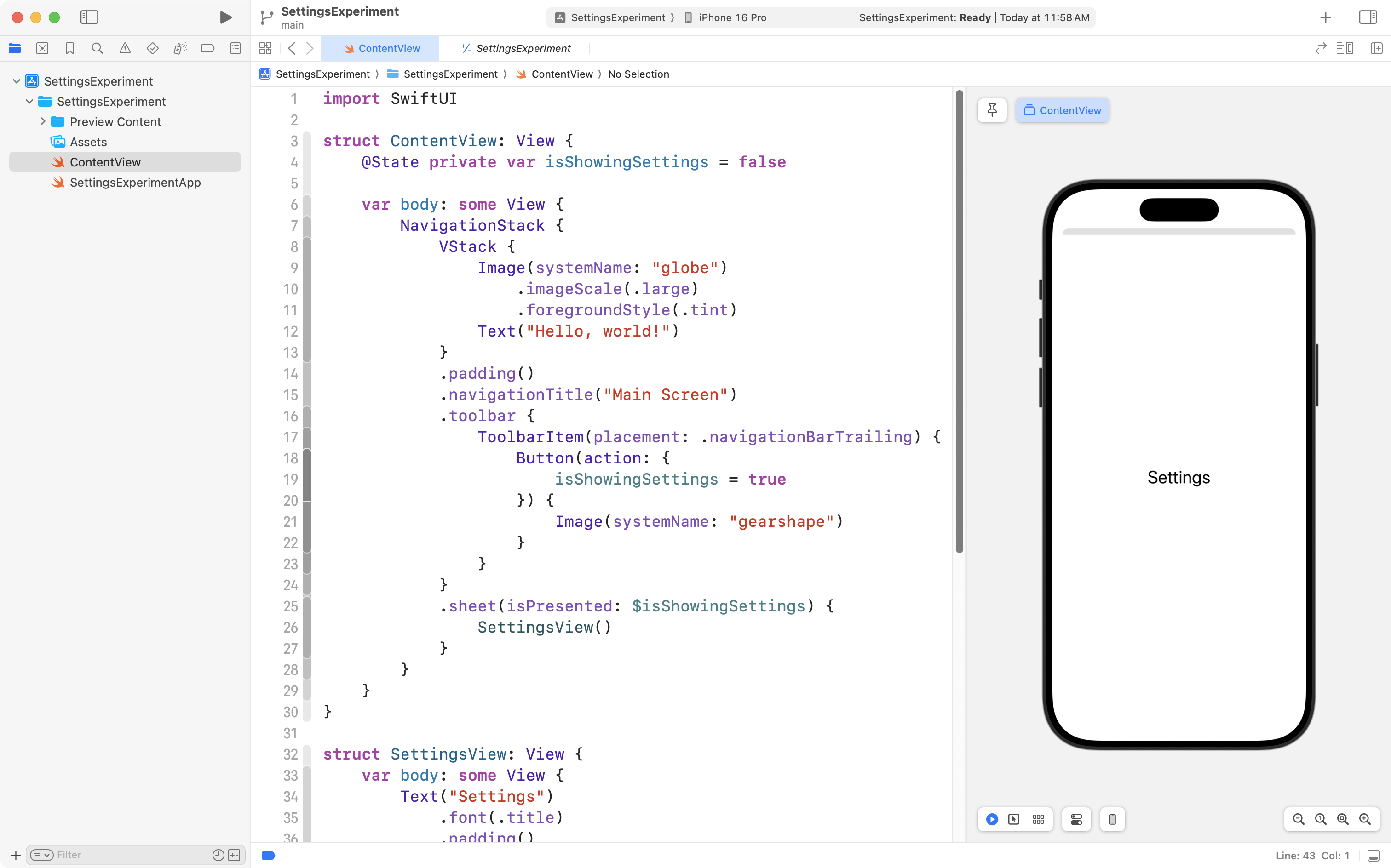
Tapping the gear icon opens a sheet displaying the word “Settings”:
Step 3: Add a Setting to Toggle the Globe Icon
The goal is to let the user toggle whether the globe icon is displayed on the main screen.
- Add a
@Stateproperty inSettingsViewto represent the toggle. - Use a
Toggleview inSettingsViewto let the user turn the setting on or off.
Update the SettingsView code as follows:
struct SettingsView: View {
    @AppStorage("showGlobe") private var showGlobe = true

    var body: some View {
        VStack {
            Text("Settings")
                .font(.title)
                .padding()

            Toggle("Show Globe Icon", isOn: $showGlobe)
                .padding()
        }
    }
}
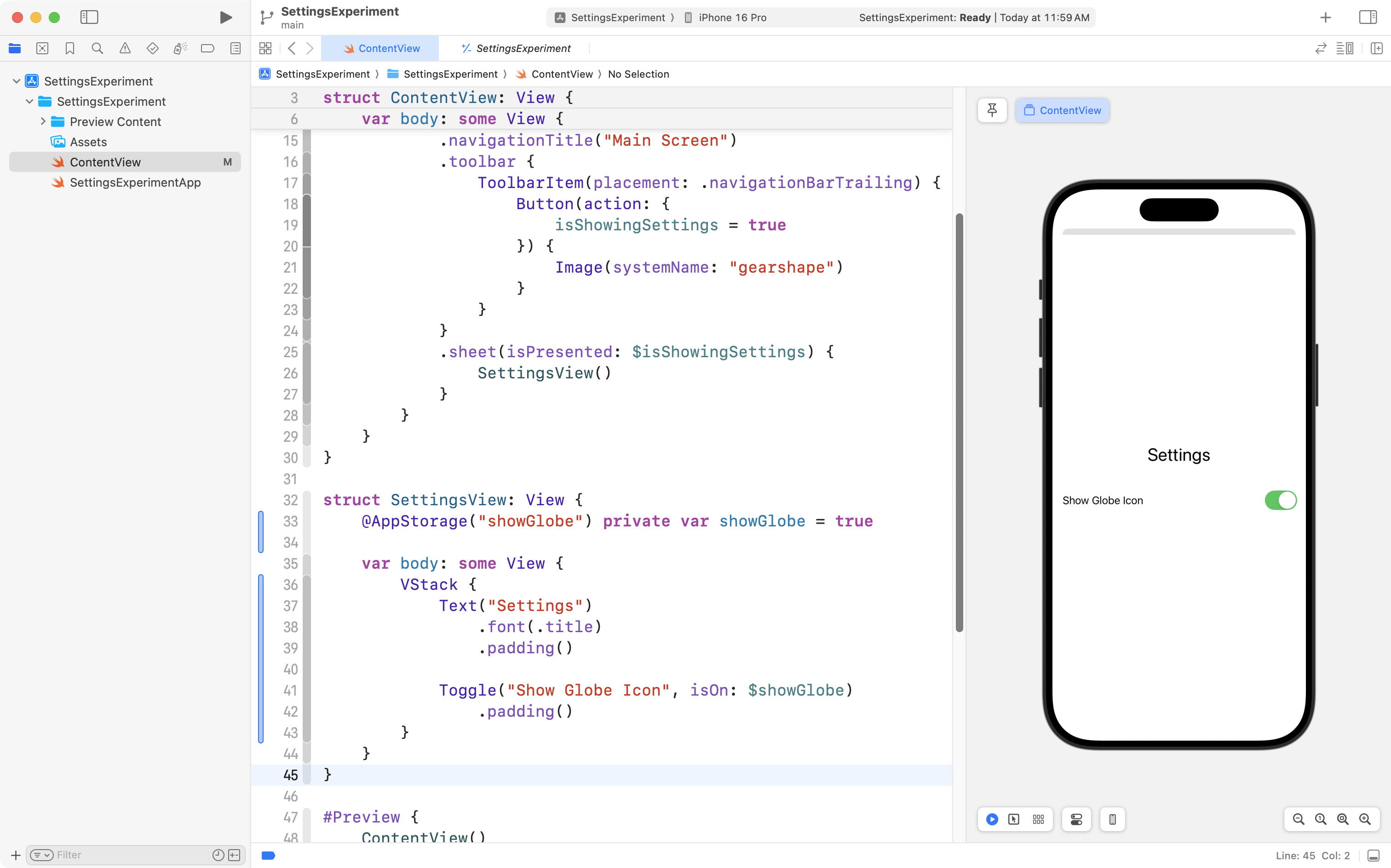
Run the app. You will now see this:
Explanation of @AppStorage
The @AppStorage property wrapper automatically saves and retrieves the value of showGlobe from the app’s user defaults. The key “showGlobe” identifies this setting. This means the user’s choice is remembered even after the app is closed.
Step 4: Use the Setting to Control the Globe Icon
Now, we’ll modify ContentView to conditionally show the globe icon based on the showGlobe setting.
- Add a
@AppStorageproperty toContentView. - Use an
ifstatement to show the globe icon only ifshowGlobeistrue.
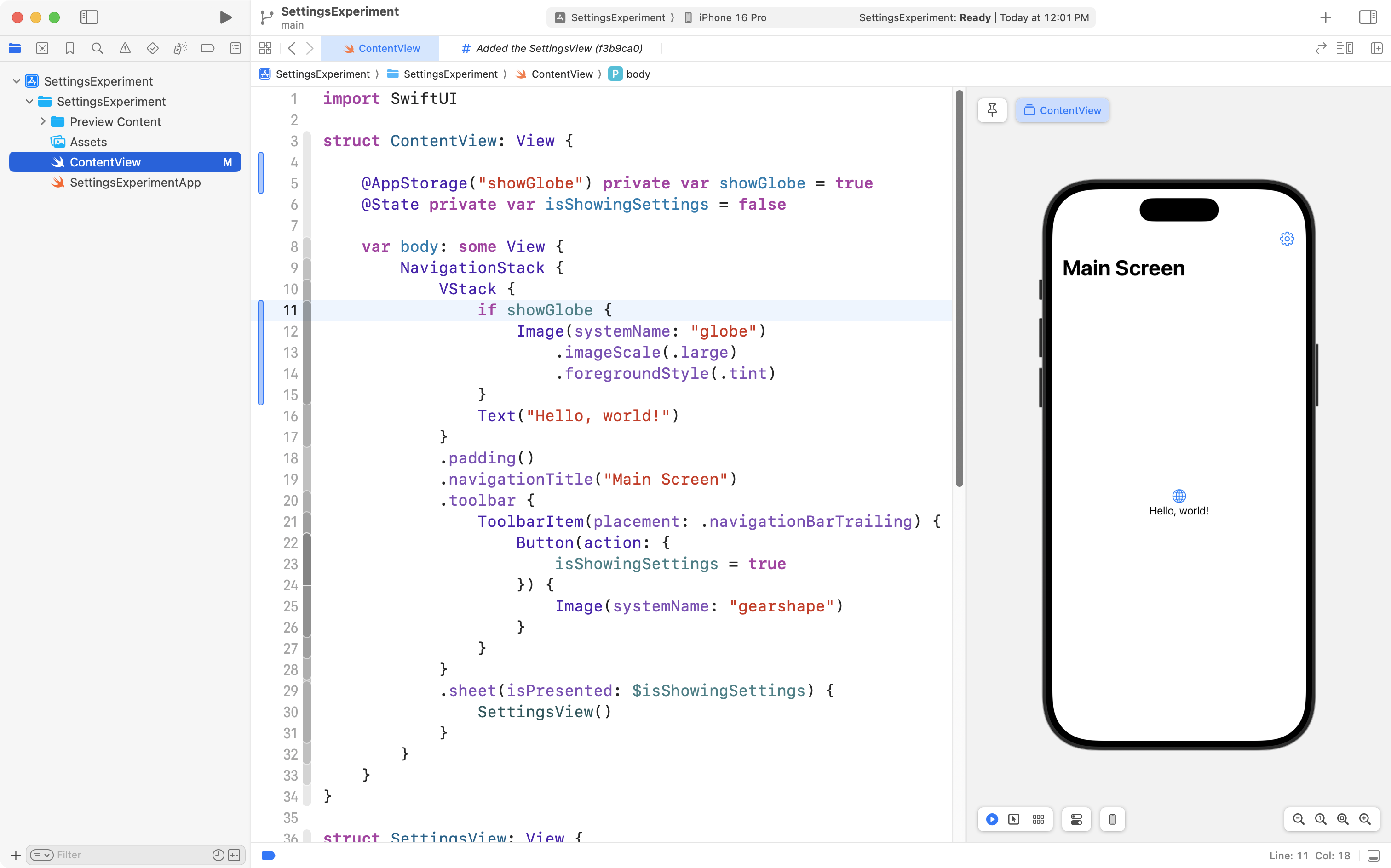
Here’s the updated ContentView:
struct ContentView: View {
    @AppStorage("showGlobe") private var showGlobe = true
    @State private var isShowingSettings = false

    var body: some View {
        NavigationStack {
            VStack {
                if showGlobe {
                    Image(systemName: "globe")
                        .imageScale(.large)
                        .foregroundStyle(.tint)
                }
                Text("Hello, world!")
            }
            .padding()
            .navigationTitle("Main Screen")
            .toolbar {
                ToolbarItem(placement: .navigationBarTrailing) {
                    Button(action: {
                        isShowingSettings = true
                    }) {
                        Image(systemName: "gearshape")
                    }
                }
            }
            .sheet(isPresented: $isShowingSettings) {
                SettingsView()
            }
        }
    }
}
The project will look something like this:
Step 5: Test the App
Run the app and test the following:
- The globe icon appears on the main screen by default.
- Tap the gear icon to open the settings sheet.
- Toggle the “Show Globe Icon” switch off and close the sheet. The globe icon should disappear.
- Reopen the app to confirm the setting is remembered.
Recap
In this tutorial, you learned how to:
- Add a sheet to a SwiftUI app.
- Use
@AppStorageto persist user settings. - Conditionally display a view based on a setting.
This is a powerful pattern for creating customizable apps. Keep experimenting to build more features!